Fixing Frappe Helpdesk Dashboard
Fixing the " dayjs is not defined" error in the Frappe Helpdesk Dashboard to restore statistics rendering.
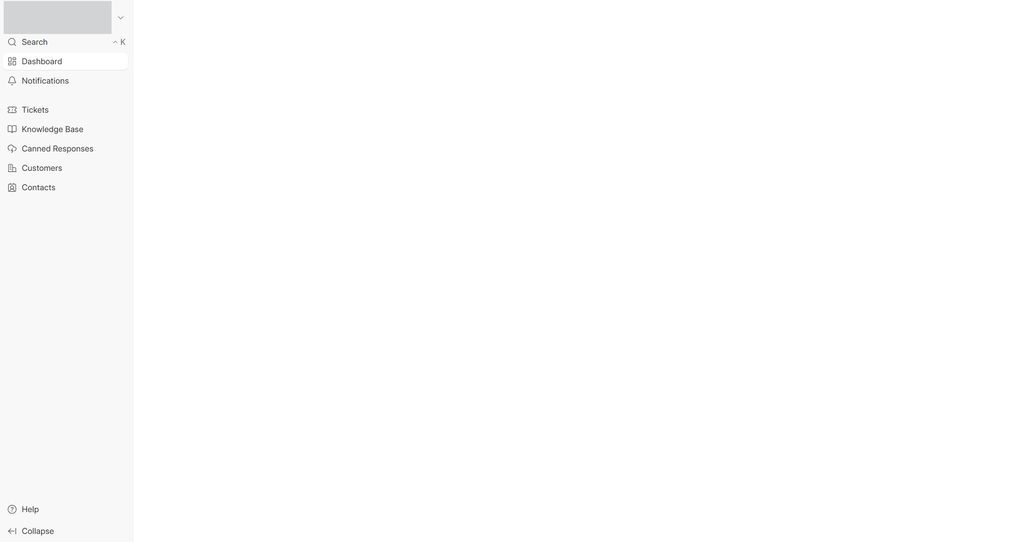
You've just set up Frappe Helpdesk. Everything seems fine until you click on your dashboard to view your support stats. Instead of charts and metrics, you're greeted with a blank page and nothing else. No data, no graphs—just emptiness.
If this sounds familiar, you're not alone. This is a known issue in Frappe Helpdesk, and the good news is that it has a simple fix. Let's walk through what causes this error and how to resolve it in minutes.
Uncaught ReferenceError: dayjs is not defined
When you open your browser's Developer Tools (F12 → Console tab), you'll see the error above. This is what's preventing your dashboard from loading properly.

What Is dayjs and Why Is It Missing?
dayjs is a lightweight JavaScript library for parsing, validating, manipulating, and formatting dates. Frappe Helpdesk uses it extensively in the dashboard to display dates, timestamps, and time-based statistics (like ticket trends over time).
When the helpdesk frontend code tries to use dayjs but the library hasn't been imported or properly
bundled, JavaScript throws a ReferenceError. This causes the dashboard component to crash,
resulting in a blank page.
Step-by-Step Solutions
Here are three approaches to fix this issue, ranging from quick terminal commands to manual code changes.
Solution 1: Clear Cache and Rebuild Assets
This is the fastest and often most effective solution. Run these commands in your bench directory:
bench clear-website-cache
bench build --app helpdesk
bench restart
After running these commands, refresh your Helpdesk dashboard. The issue should be resolved.
Solution 2: Manual Import in Dashboard.vue (If Solution 1 Fails)
If clearing the cache doesn't work, you may need to manually add the dayjs import statement to the Dashboard.vue file.
Step 1: Locate the Dashboard.vue file. The path is typically:
Step 2: Open the file and look for the <script> block at the top.
Step 3: If the import is missing, add this line at the beginning of the
<script> block:
The beginning of your script block should look something like this:
import dayjs from "dayjs";
import { ref, onMounted } from "vue";
// ... rest of the imports
Step 4: Save the file, then rebuild and restart:
bench restart
Solution 3: Full Helpdesk Setup (Fresh Install)
If you're dealing with a fresh installation that hasn't been fully set up yet, you can run the helpdesk setup command:
This command performs the necessary setup steps, which may include building the required assets and ensuring all dependencies are properly installed.
Quick Reference – All Commands in One Place
Here's the complete sequence to resolve the issue from start to finish:
bench clear-cache
bench clear-website-cache
# Step 2: Build the helpdesk app assets
bench build --app helpdesk
# Step 3: Restart the bench
bench restart
# Alternative (for fresh installs)
bench setup-helpdesk
Troubleshooting – If the Issue Persists
| Symptom | What to Check |
|---|---|
| dayjs error still appears after rebuild | Verify you're in the correct bench and site. Run bench env to confirm. Also check if
you have multiple bench instances. |
| Dashboard loads but has other errors | There may be additional missing imports. Check the console for other ReferenceErrors and add those imports similarly. |
| Changes not taking effect | Hard refresh your browser (Ctrl+Shift+R or Cmd+Shift+R). Clear browser cache manually. |
| File path doesn't exist | Find the correct Dashboard.vue file path. Try: find apps/helpdesk -name "Dashboard.vue"
|
Preventing This Issue in the Future
To avoid running into this again, consider these best practices:
- After updating helpdesk: Always run bench build --app helpdesk and bench restart
- When customizing: Be mindful of import statements when adding new Vue components
- Keep dependencies updated: Ensure dayjs is listed in your app's dependencies
- Use bench migrate: After any major changes, run bench migrate to ensure everything is synchronized
Conclusion
The "dayjs is not defined" error in Frappe Helpdesk is a common but easily fixable issue. In most cases, a simple cache clear and rebuild does the trick. If not, adding the import manually takes less than a minute.
Don't let a missing import keep you from accessing your support analytics. With this fix, your dashboard will be back up and running, showing all the ticket trends, response times, and performance metrics you need to run an efficient helpdesk.
No comments yet. Login to start a new discussion Start a new discussion