Print Template: Beautiful, Ready-to-Use Print Formats
You've just installed Frappe ERPNext. It's powerful, flexible, and ready to run your business. Then you go to print your first invoice—and there it is. The plain, functional, but honestly uninspiring
I've been there. My boss asked me to create a custom print format that met company standards, and I ran into issue after issue. But from that struggle, an idea was born: what if every Frappe ERPNext installation came with beautiful, clean, ready-to-use print templates? What if users could focus on important things—like setting up their Chart of Accounts properly—instead of spending hours tweaking print formats?
In this blog, we'll cover:
- What Print Template is and how it works
- The technology behind it (Frappe Pages, Print Format, Letterhead)
- How to select, preview, and set default templates
- Integration with PDF on Submit for automatic PDF generation
- What's coming next (PDF scanner, Print Designer integration)
1. What Is Print Template?
Print Template is a Frappe app that provides clean, professional print formats for ERPNext out of the box. No more staring at plain, default templates or spending hours tweaking HTML and CSS. Just install, select, and print.
1.1 Requirements
As of the time of writing, Print Template requires two other applications to function fully:
| Application | Purpose |
|---|---|
| ERPNext | Core ERP functionality—Sales Invoice, Purchase Order, etc. |
| PDF on Submit | Enables automatic PDF generation when a document is submitted |
1.2 The Dashboard – Out of the Box
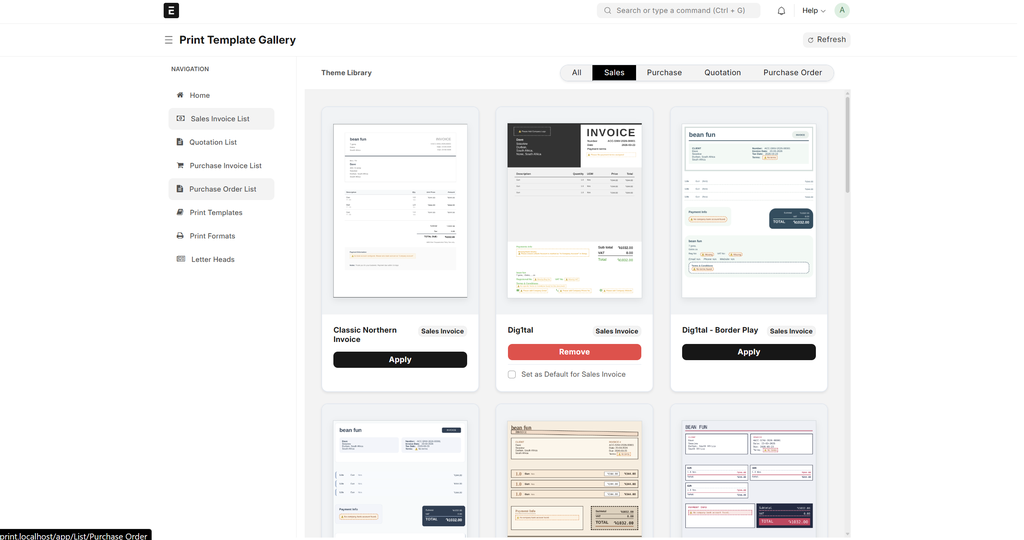
Here's what the Print Template dashboard looks like right after installation. Clean, intuitive, and ready to use.
2. How It Works: The Technology Behind the Scenes
When I first started building this, I almost created a separate Vue.js application just to handle the interface. Then I discovered Frappe Pages—and everything changed.
2.1 Frappe Pages: The Game Changer
Frappe has a built-in concept called "Pages" that allows you to create custom UI sections within the Frappe framework. This discovery saved me from building an entire separate frontend. Because the app is now part of the system, manipulating data and getting information where it needs to go became significantly easier.
2.2 Two Doctypes Doing the Heavy Lifting
Print Template leverages two existing Frappe doctypes to work its magic:
| Doctype | Role |
|---|---|
| Letterhead | Handles the header and footer of your documents |
| Print Format | Handles the main body content and CSS styling |
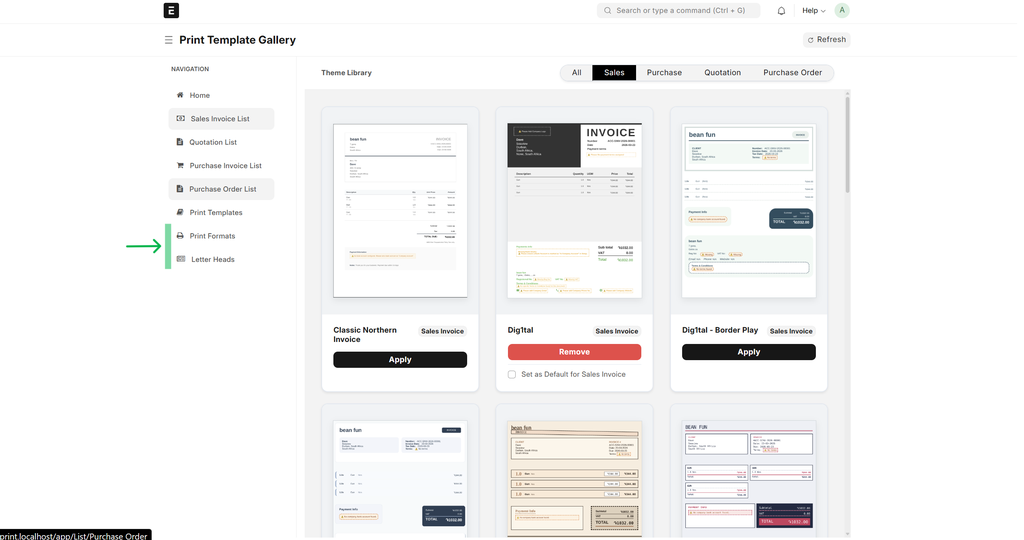
This is why, on the sidebar, you'll see links to both—giving you quick access to edit either component if you want to go deeper.
3. What Makes the Templates?
People make the templates! Jokes aside, the real answer is that we carefully designed each print format and letterhead combination to look professional, clean, and modern. The templates ship with the application out of the box—meaning it's a select-and-play situation. No need to worry about setup or configuration.
You can edit any template if you choose to, but most users won't need to. The defaults are designed to work beautifully from day one.
4. Selecting and Using a Template
Using Print Template is intentionally simple. Here's how it works.
4.1 Make a Template Default
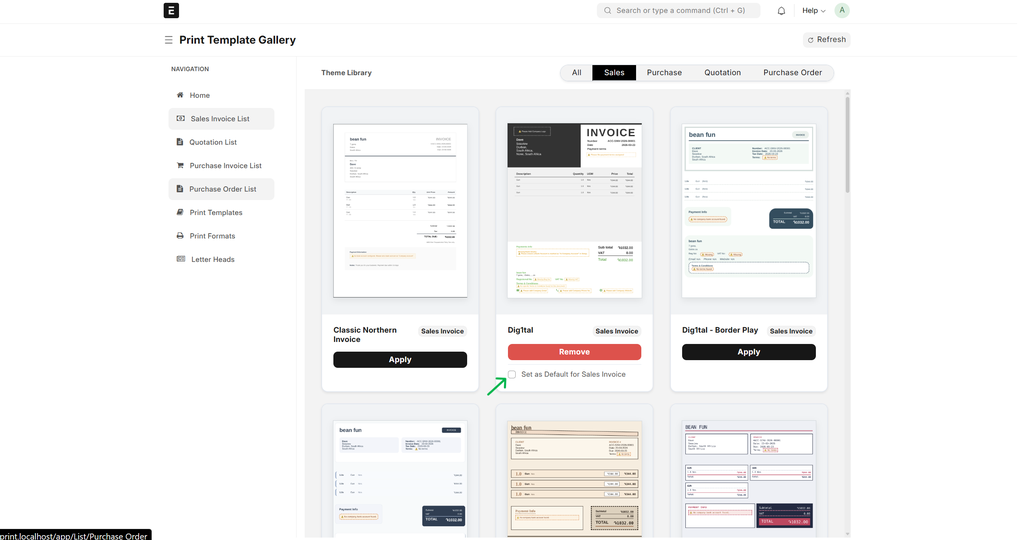
When you view a template (like Sales Invoice), you'll see an option to make it default. This is important because when you have PDF on Submit installed, the system will automatically use your selected default template to generate PDFs when you submit a document.
4.2 The PDF on Submit Workflow
Here's what the process looks like when you set a default template and submit a document:
4.3 Supporting Multiple Document Types
This works for all sections. You can have a default template selected for Sales Invoice, Purchase Order, Quotation, and Delivery Note—all at the same time. When you submit any of these documents, the system uses your chosen template for that document type.
5. The "Try Before You Commit" Experience
One of my favorite features: you can preview templates without committing to them.
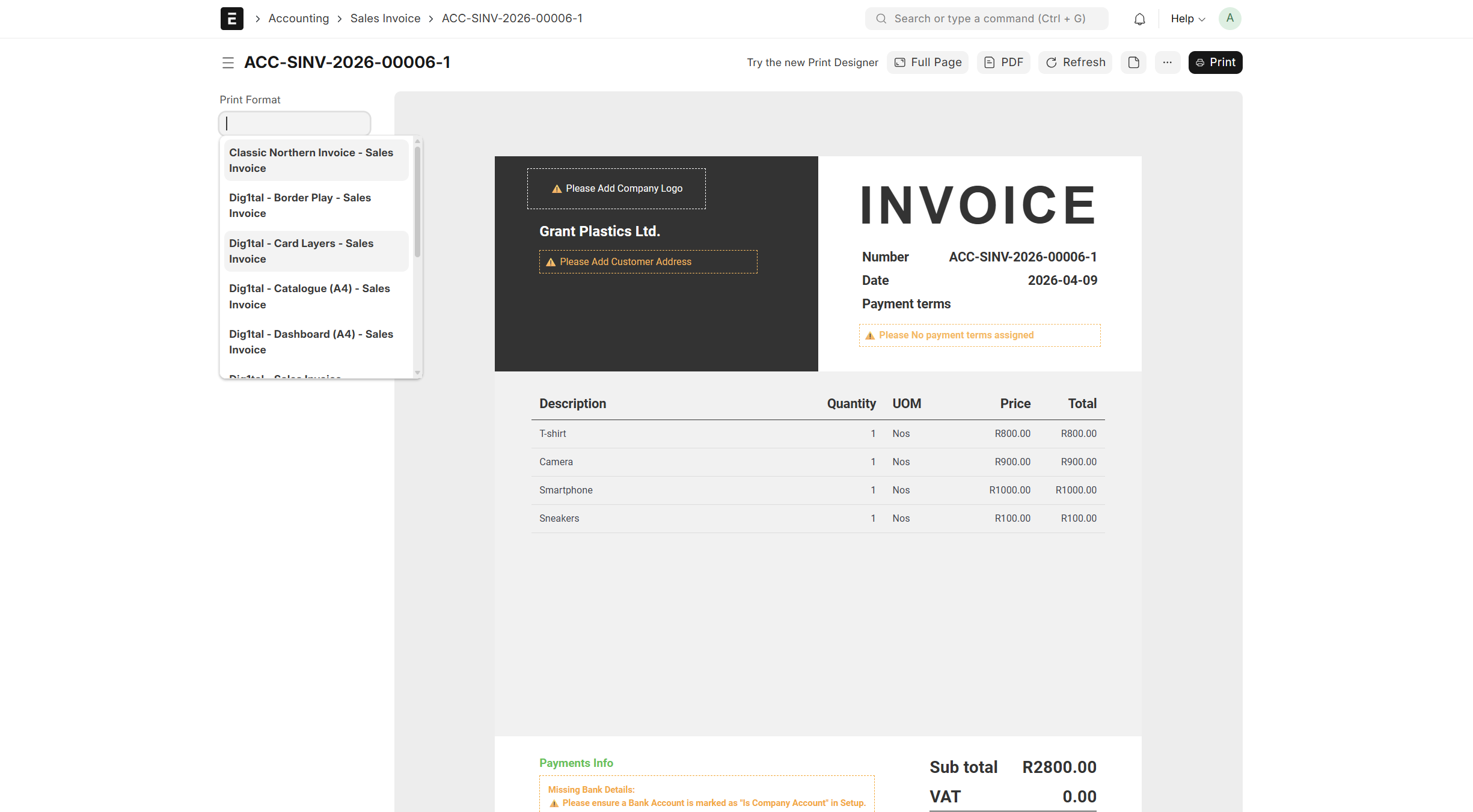
From any doctype, you can print and select the template you want to try—just like trying on new clothes at a shop. This time, you don't need to take off your shoes! Pick which one you like, see how it looks, and then:
- Print it out if you're happy
- Make it the default if it's your style
- Or keep trying different templates until you find the perfect fit
6. What Problem Does This Solve?
Let me be honest: the default print formats in ERPNext are useful but plain. They work, but they don't wow anyone. Creating custom print formats from scratch requires HTML, CSS, and understanding Frappe's print format system.
Print Template takes that overhead off your plate. Instead of spending hours on print design, you can:
- Install the app
- Select your preferred templates
- Set them as defaults
- Get back to important things—like setting up your Chart of Accounts properly
"All I aimed to do was to take a bit of overhead during setup, thus getting the user to dive into the other important things."
7. What's Coming Next?
This is version one, and I already have exciting plans for the future.
7.1 Print Designer Integration
I really like the UI of Print Designer for visual template editing. The next step is to integrate with Print Designer so that when users want to edit templates, they get redirected to a beautiful, drag-and-drop interface instead of editing raw HTML/CSS.
7.2 PDF Scanner – Turn Any Document Into a Template
A PDF scanner that can analyze existing PDF documents and generate templates based on what you upload. Want a template that matches your existing branded invoices? Upload a PDF, and the system helps you recreate it.
8. Quick Reference – Getting Started
# 1. Install dependencies
ERPNext + PDF on Submit

# 2. Install Print Template
bench get-app app_url(Not Public Yet)
bench --site [site_name] install-app print_template

# 3. Open the dashboard
Search "Print Template" in Awesome Bar

# 4. Select your templates
Browse available templates for each document type

# 5. Set defaults
Click "Make Default" on your preferred templates

# 6. Test
Create a Sales Invoice → Submit → Check generated PDF
Wrap-Up
Print Template is a simple idea: take something that's often a pain point (print formats) and make it effortless. Install, select, set defaults, and move on. No more plain invoices. No more hours of tweaking CSS. Just professional, clean templates that work out of the box.
1. PDF scanner for custom template generation
2. Print Designer integration for visual editing
Thank you for reading this blog. Please like, comment, and share
No comments yet. Login to start a new discussion Start a new discussion