Adding Animation to Builder
Becoming Bob the Builder with Frappe Builder: Add On-Scroll Animations Made Simple
Ever visited a website where elements elegantly fade in as you scroll down? That subtle motion makes pages feel alive, professional, and engaging. The good news? You don't need to be a JavaScript wizard or hire a developer to add these effects to your Frappe Builder site. With the Animate On Scroll (AOS) library and Frappe Builder's intuitive interface, you can become your own Bob the Builder—constructing beautiful, animated web pages in minutes.
In this article we'll cover:
- Setting up a standard Frappe website with built-in components
- Importing the AOS library into your site's global header and body
- Adding animation attributes to any component
- Publishing your animated site
1. Getting Started: Your Frappe Builder Foundation
First things first—we need a website to work with. Frappe Builder comes with standard components right out of the box, perfect for our demo.
1.1 Set Up Your Website
- Log in to your Frappe site with Builder installed.
- Navigate to the Builder module and create a new website page, or open an existing one you'd like to animate.
- Use the standard Frappe components (headers, text blocks, images, cards, etc.) to build your page structure.
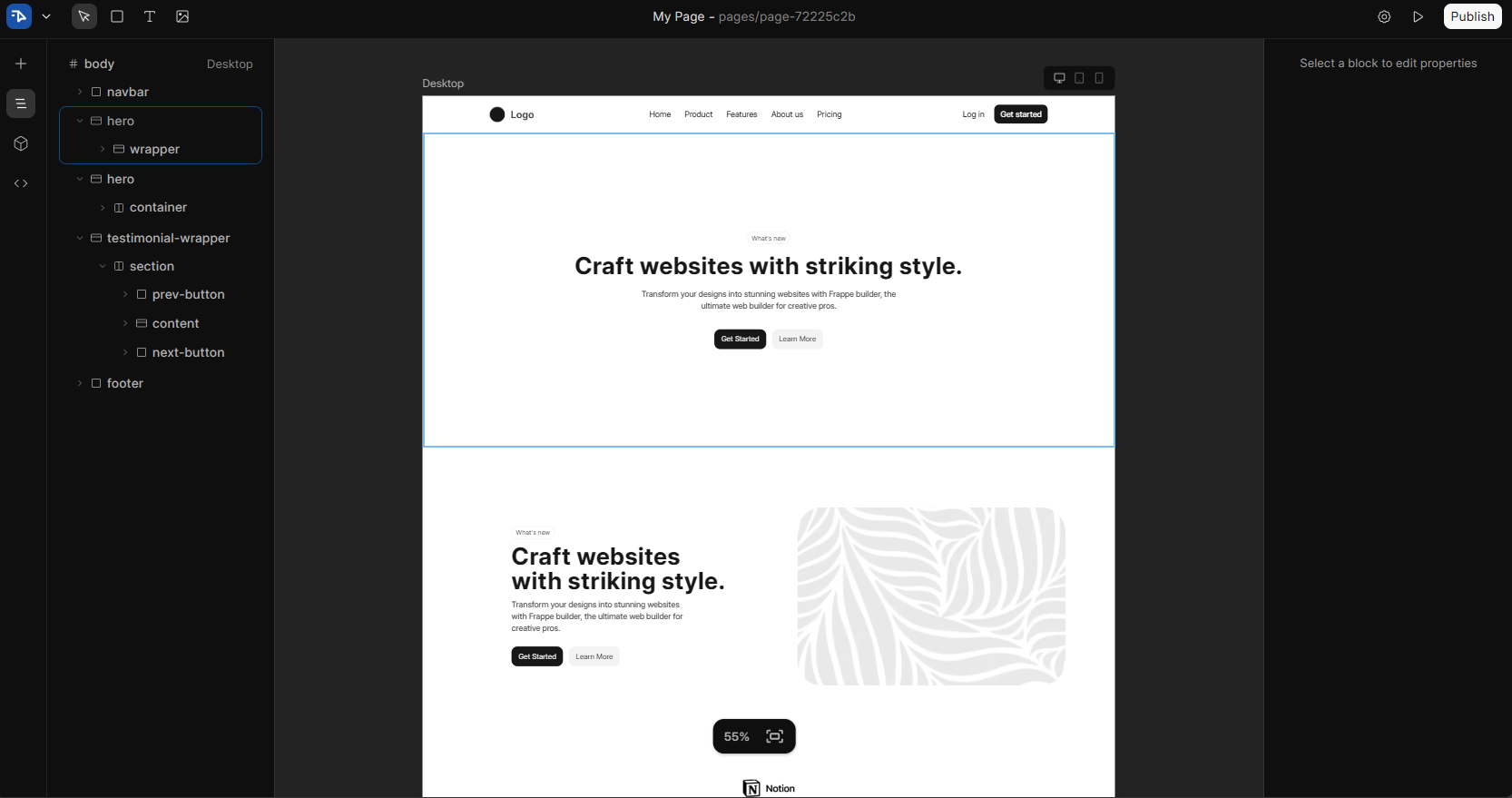
Note: You can use any components you like—the animation will work on everything from buttons to entire sections.
2. Importing the Animate On Scroll Library
Now for the secret sauce. We'll pull in the AOS library from its CDN. This two-step process adds the styling and functionality to your entire site.
2.1 Add the CSS to Global Header
The first piece of code tells your site how animations should look. This goes in the global header so it loads before your page content.
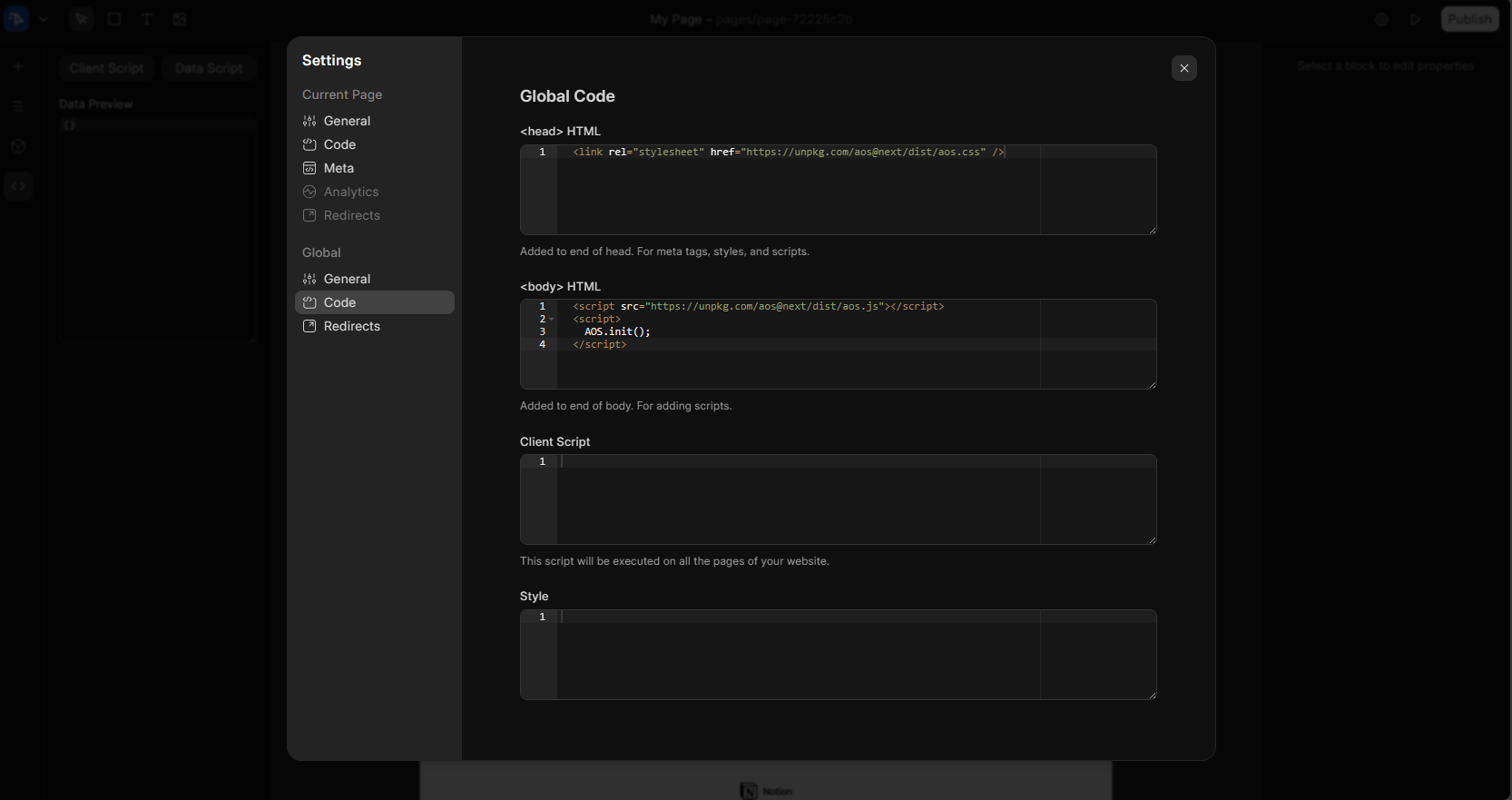
2.2 Add the JavaScript and Initialization to Global Body
The second piece loads the animation engine and tells it to start watching for scroll events. This goes in the body, ideally right before the closing tag.
<script>
AOS.init();
</script>
2.3 Where to Put This Code in Frappe Builder
- In your Frappe Builder editor, look for Website Settings or Theme Settings (depending on your version).
- Find the fields for:
- Global Header (HTML) or Head HTML - Paste the CSS link here
- Global Body (HTML) or Body HTML - Paste the JavaScript code here
- Save your settings.
3. Adding Animations to Your Components
Here's where the magic happens. Frappe Builder makes it incredibly simple to attach animations to any component using HTML Attributes.
3.1 Select Your Component
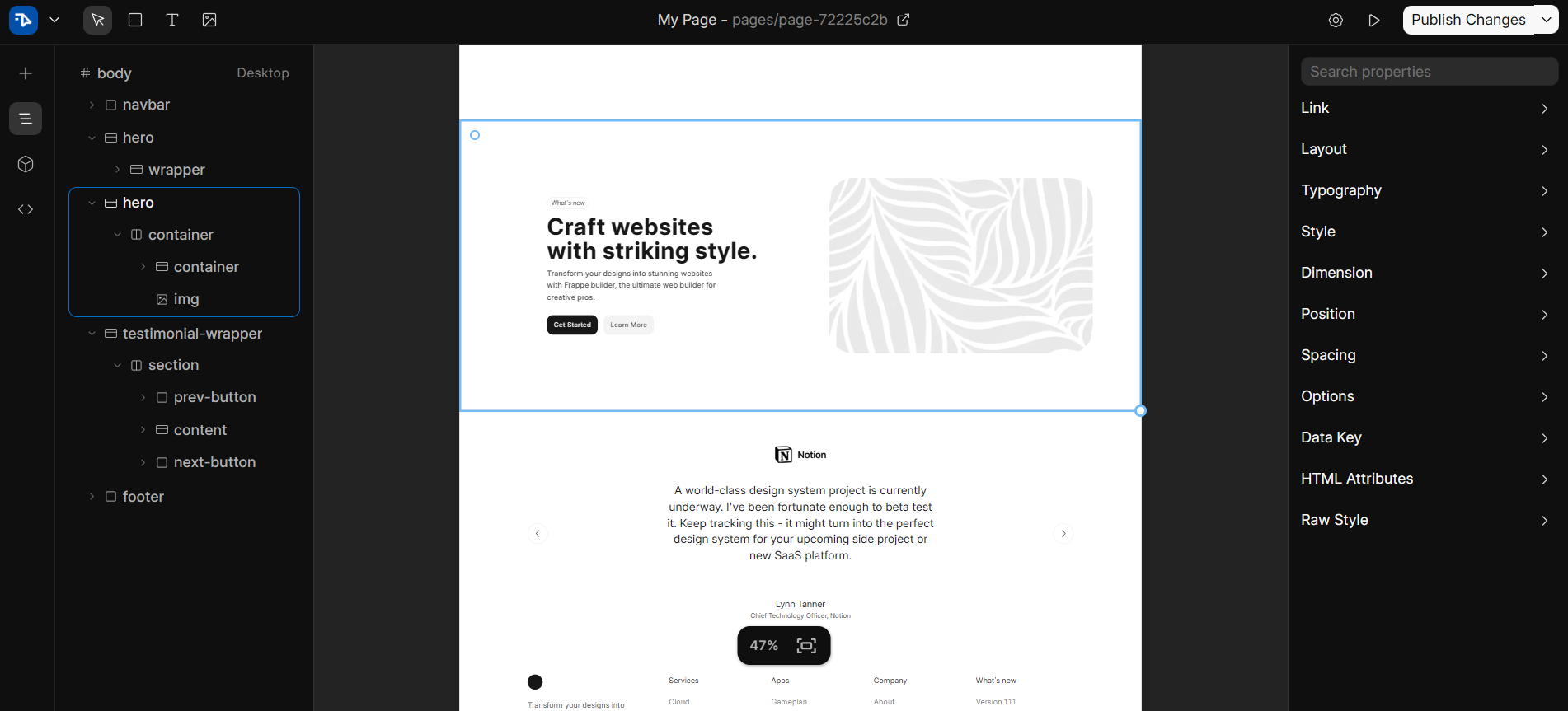
Click on any component in your Builder editor—a heading, an image, a card, or even an entire section.
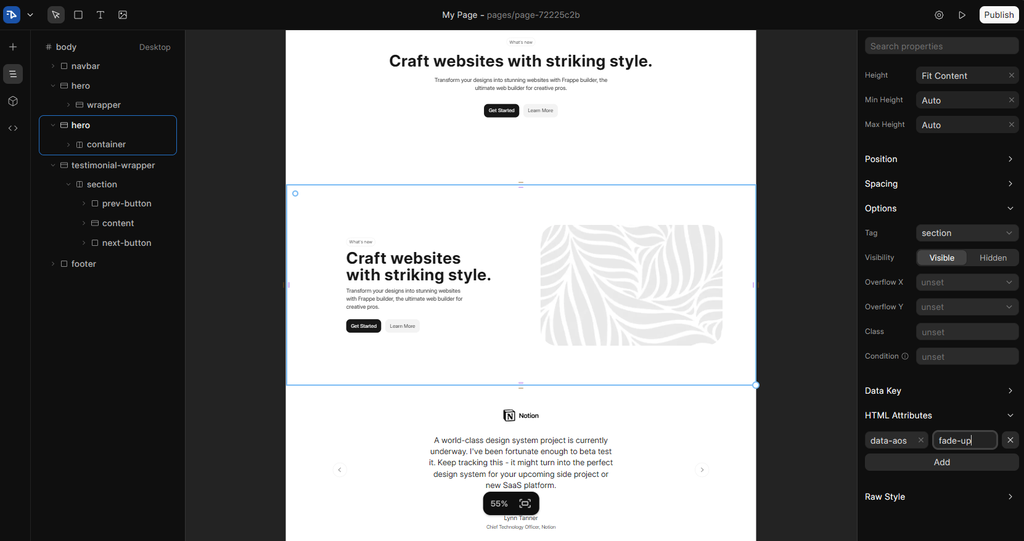
3.2 Find the HTML Attributes Section
In the left sidebar, scroll down until you see HTML Attributes. This is where we'll tell AOS how to animate this element.
3.3 Add the Animation Property
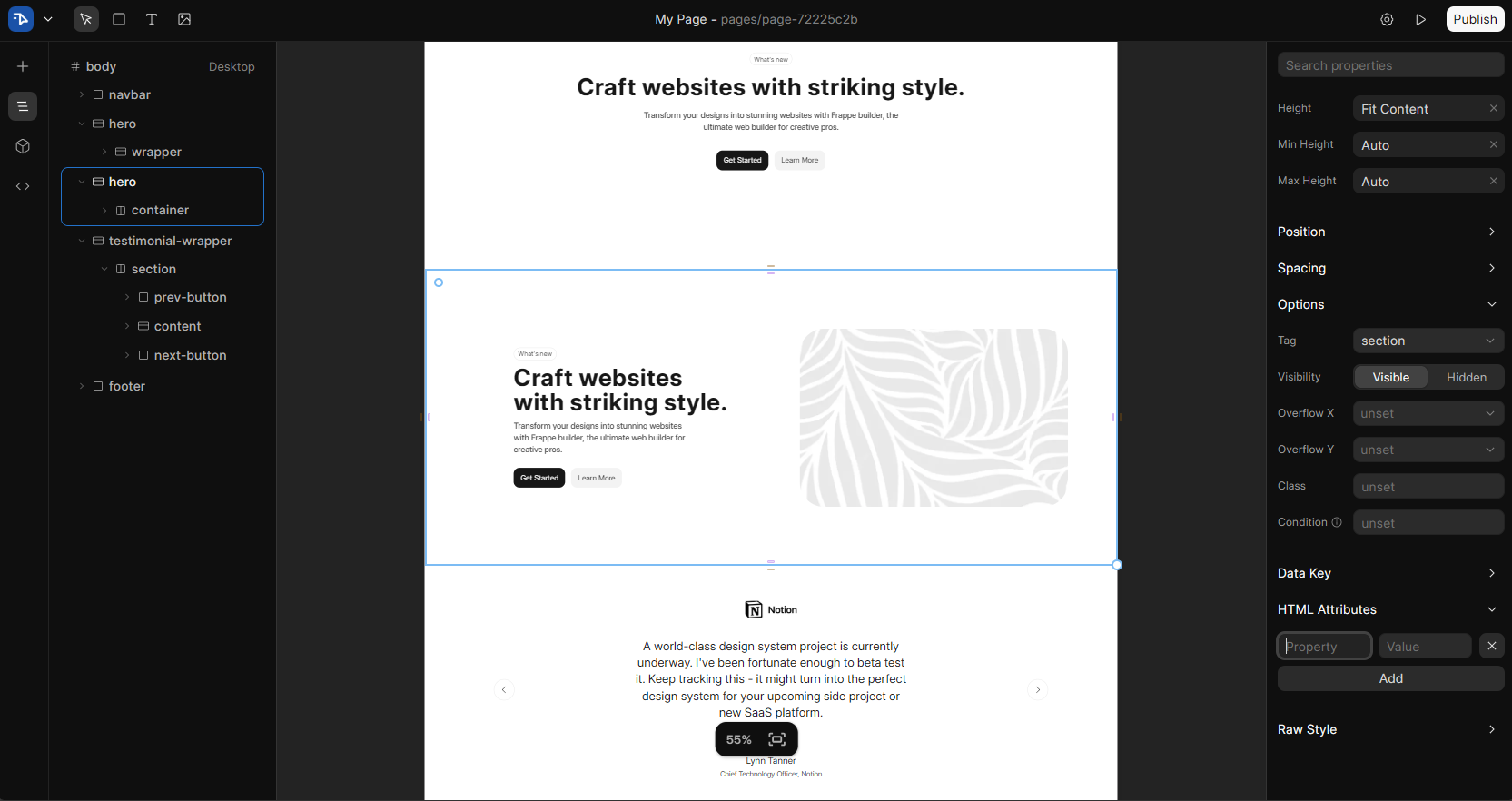
- Click the "Add" button in the HTML Attributes section.
- In the Property field, enter:
data-aos - In the Value field, enter your desired animation effect. For beginners, we recommend:
fade-up
3.4 Popular Animation Values to Try
The data-aos attribute accepts many values. Here are some crowd favorites:
| Animation Value | What It Does |
|---|---|
fade-up |
Element fades in while moving up |
fade-down |
Element fades in while moving down |
fade-left |
Element fades in while moving from right to left |
fade-right |
Element fades in while moving from left to right |
zoom-in |
Element scales up as it appears |
flip-up |
Element flips vertically as it appears |
4. Publishing and Seeing Your Work Live
You've done the work—now it's time to see the results!
- Click the Publish or Save button in your Builder editor.
- Visit your live website page.
- Scroll down and watch your elements come to life with smooth animations.
5. Troubleshooting: Common Issues & Quick Fixes
| Symptom | Likely Cause | Quick Fix |
|---|---|---|
| No animations appear | AOS library not loaded | Check global header/body for the code snippets |
| Animations work but look wrong | CSS missing from header | Ensure the stylesheet link is in Global Header, not Body |
| Elements animate immediately on page load | Missing AOS.init() | Add the initialization script in Global Body |
| Can't find HTML Attributes section | Component not selected | Click directly on the component in the editor |
6. TL;DR – Quick Reference Guide
# 1. Set up your website
Use standard Frappe Builder components to build your page

# 2. Add AOS Library
Global Header: <link rel="stylesheet" href="https://unpkg.com/aos@next/dist/aos.css">
Global Body: <script src="https://unpkg.com/aos@next/dist/aos.js"></script>
            <script> AOS.init(); </script>

# 3. Animate components
Select component → Find HTML Attributes → Click Add
Property: "data-aos" → Value: "fade-up" (or any animation)

# 4. Publish and enjoy
Save/Publish → View live site → Scroll to see magic
Wrap-Up
See? You didn't need a construction crew or a development team. With Frappe Builder and the Animate On Scroll library, you've just added professional-grade animations to your website in minutes. Your pages now feel more alive, more engaging, and more memorable—all with a few lines of code and some simple HTML attributes.
This is the beauty of Frappe Builder: it empowers you to be your own Bob the Builder. You construct the structure, and with tools like AOS, you breathe life into it. No complexity, no confusion—just results.
Happy building—and animating!
No comments yet. Login to start a new discussion Start a new discussion